![[2026.2.16]持续更新子比主题;美化教程合集-心云阁](https://www.bllo.cn/wp-content/uploads/2026/01/20260126013801435-xinyunlogo.png.webp)





注意说明
每个人的审美观念不一样,所以请先参考本站或测试在用的美化。
主题美化、小工具可能会有一定程度使网站加载缓慢、CSS全局污染等等一系列的问题,请一定要测试后再进行美化。
主题美化可能会对主题文件进行修改,更新时请及时备份主题美化的文件,或者收藏本站,以免一些主题页面或美化效果丢失。
子比主题美化都是我自己鼓捣收集、测试后才发布的,完全免费,开放。
教程说明
(最新版)CSS代码添加到子比主题后台设置->自定义代码->自定义CSS样式
(最新版)JS即javascript代码添加到子比主题后台设置->自定义代码->自定义javascript代码
(最新版)没有特殊说明的小工具,自定义HTML小工具添加网站后台->外观->小工具->点击【自定义HTML】选择放置的位置->把代码复制进去,保存即可。
其他添加方式的,我会在教程里告知,若只需添加CSS+JS的教程,我不重复告知了,请注意看上面的方法。
↑↑↑↑↑↑不会添加代码的看上面↑↑↑↑↑↑
其他添加方式的,我会在教程里告知,若只需添加CSS+JS的教程,我可能不重复告知了,请注意看上面的方法。
有些美化教程本站已经发布的,本文章将不再进行编写教程,直接跳转到文章页面
#1添加微语页面
1、首先在子比主题目录的functions.php里面加入以下代码:
//微语
add_action('init', 'my_custom_init'); function my_custom_init() { $labels = array( 'name' => '微语', 'singular_name' => 'singularname', 'add_new' => '发表微语', 'add_new_item' => '发表微语', 'edit_item' => '编辑微语', 'new_item' => '新微语', 'view_item' => '查看微语', 'search_items' => '搜索微语', 'not_found' => '暂无微语', 'not_found_in_trash' => '没有已遗弃的微语', 'parent_item_colon' => '', 'menu_name' => '微语' ); $args = array( 'labels' => $labels, 'public' => true, 'publicly_queryable' => true, 'show_ui' => true, 'show_in_menu' => true, 'query_var' => true, 'rewrite' => true, 'capability_type' => 'post', 'has_archive' => true, 'hierarchical' => false, 'menu_position' => null, 'supports' => array('title','editor','author') ); register_post_type('shuoshuo',$args); }
2、然后在子比主题页面目录下新建一个weiyu.php文件,然后把下面代码放入weiyu.php文件中即可。
注:微语头像只需把代码中“https://q1.qlogo.cn/g?b=qq&nk=&s=640”修改成自己QQ号头像或者自己图片链接即可。86512
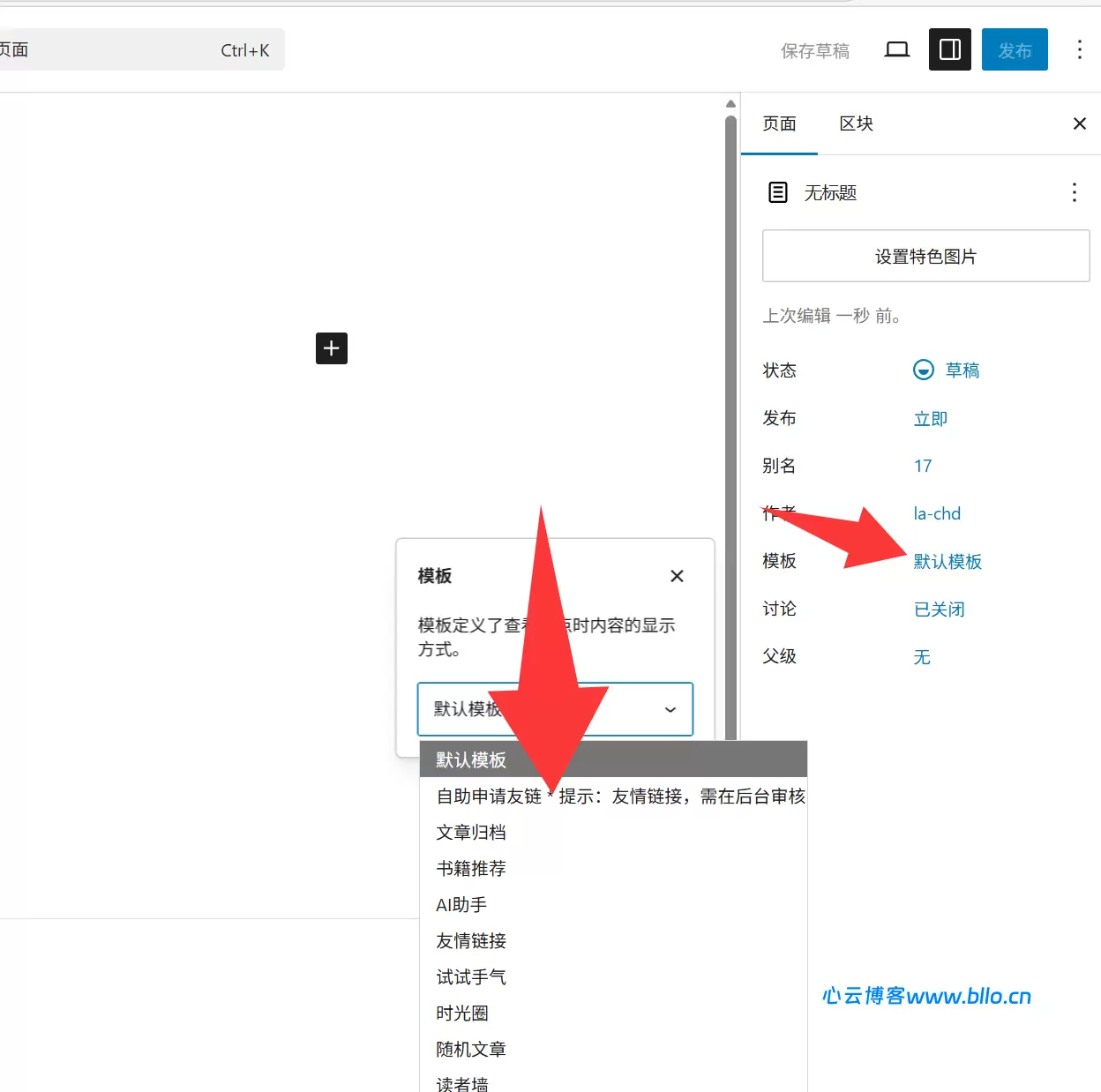
3、最后在后台—>页面—>新建页面—>找到“页面属性”选择“微语页面”—>填写标题—>发布就可以啦!
发表微语
发表微语只需在后台—>微语—>发表微语,然后发表自己喜欢的微语即可。
说明:因为微语页面采用主题添加代码的方式生成的页面,主题更新后会失效,所以更新主题时请及时备份文件代码,或者关注收藏本站。好啦!子比主题添加微语页面的文章教程到这里就结束了!
1.在子比主题的主题目录下,header.php底部添加以下函数代码:
<!--统计信息函数-->
<script type="text/javascript" >
<?php
//用户总数
$users = $wpdb->get_var("SELECT COUNT(ID) FROM $wpdb->users");echo "var tj_jstext="."'$users'";
?>
</script>
<script type="text/javascript" >
<?php
/*
 * WordPress获取今日发布文章数量
 *www.cunshao.com
 */
function nd_get_24h_post_count(){
  $today = getdate();
  $query = new WP_Query( 'year=' . $today["year"] . '&monthnum=' . $today["mon"] . '&day=' . $today["mday"]);
  $postsNumber = $query->found_posts;
  return $postsNumber;
}
$post_24h = nd_get_24h_post_count();
echo "var tj_24h="."'$post_24h'";
?>
</script>
<script type="text/javascript" >
<?php
/*
 * WordPress整站文章访问计数
 *www.cunshao.com
 */
function nd_get_all_view(){
  global $wpdb;
  $count=0;
  $views= $wpdb->get_results("SELECT * FROM $wpdb->postmeta WHERE meta_key='views'");
  foreach($views as $key=>$value){
    $meta_value=$value->meta_value;
    if($meta_value!=' '){
      $count+=(int)$meta_value;
    }
  }return $count;
}
$post_view = nd_get_all_view();
echo "var tj_view="."'$post_view'";
?>
</script>
<script type="text/javascript" >
<?php
//日志总数
$count_posts = wp_count_posts();
$published_posts =$count_posts->publish;
echo "var tj_rzzs="."'$published_posts'";
?>
</script>
<script type="text/javascript" >
<?php
//稳定运行
$wdyx_time = floor((time()-strtotime("2020-3-28"))/86400);
echo "var tj_wdyx="."'$wdyx_time'";
?>
</script>
修改版PHP代码:
<!--调用信息代码-->
<!--底部统计用的代码-->
<script type="text/javascript" >
<?php
//用户总数
$users = $wpdb->get_var("SELECT COUNT(ID) FROM $wpdb->users");echo "var tj_jstext="."'$users'";
?>
</script>
<script type="text/javascript" >
<?php
/*
 * WordPress获取今日发布文章数量
 */
function nd_get_24h_post_count(){
  $today = getdate();
  $query = new WP_Query( 'year=' . $today["year"] . '&monthnum=' . $today["mon"] . '&day=' . $today["mday"]);
  $postsNumber = $query->found_posts;
  return $postsNumber;
}
$post_24h = nd_get_24h_post_count();
echo "var tj_24h="."'$post_24h'";
?>
</script>
<script type="text/javascript" >
<?php
/*
 * WordPress整站文章访问计数
 */
function nd_get_all_view(){
  global $wpdb;
  $count=0;
  $views= $wpdb->get_results("SELECT * FROM $wpdb->postmeta WHERE meta_key='views'");
  foreach($views as $key=>$value){
    $meta_value=$value->meta_value;
    if($meta_value!=' '){
      $count+=(int)$meta_value;
    }
  }return $count;
}
$post_view = nd_get_all_view();
echo "var tj_view="."'$post_view'";
?>
</script>
<script type="text/javascript" >
<?php
//日志总数
$count_posts = wp_count_posts();
$published_posts =$count_posts->publish;
echo "var tj_rzzs="."'$published_posts'";
?>
</script>
<script type="text/javascript" >
<?php
//稳定运行
$wdyx_time = floor((time()-strtotime("2020-03-28"))/86400);
echo "var tj_wdyx="."'$wdyx_time'";
?>
</script>
<!--调用信息代码结束-->
注:函数运行日期2020-03-28改为你自己网站运行的日期。
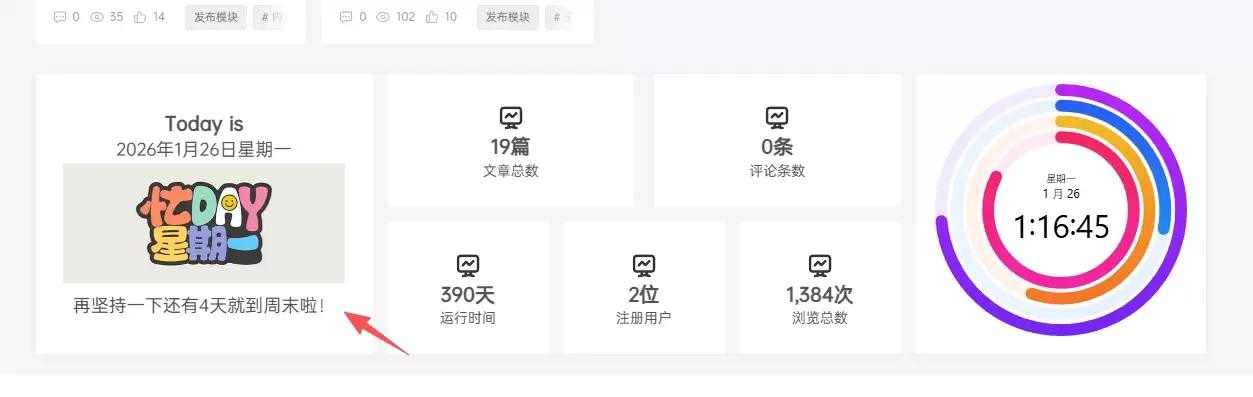
2.在后台–>外观–>小工具–>自定义HTML,把自定义HTML放到合适的版块里(子比主题放在首页-底部全宽度),然后把下面代码复制粘贴进去,即可在前台显示。
<!--信息统计开始-->
<div id="nuandao">
    <div class="siteCount">
      <div class="wrapper">
        <ul>
          <li>
            <span>
<script type="text/javascript" >
document.write(tj_jstext);
</script>
</span>
            <b>用户总数</b>
          </li>
          <li>
            <span><script type="text/javascript" >
document.write(tj_rzzs);
</script></span>
            <b>文章总数</b>
          </li>
          <li>
            <span><script type="text/javascript" >
document.write(tj_view);
</script></span>
            <b>浏览总数</b>
          </li>
          <li>
            <span></span>
            <span>
<script type="text/javascript" >
document.write(tj_24h);
</script>
</span>
            <b>今日发布</b>
          </li>
          <li>
            <span><script type="text/javascript" >
document.write(tj_wdyx);
</script></span>
            <b>稳定运行</b>
          </li>
        </ul>
        <div class="join-vip">
          <a  href="/" target="_blank" style="background-image: linear-gradient(to right, #D279EE, #F8C390); text-align:center;" >立即加入</a>
         <p>加入村少博客,快速获取优质IT资源!</p>
        </div>
      </div>
    </div>
  </div>
<style type="text/css">
 body{padding: 0px; margin: 0px;} *, *::before, *::after{box-sizing: border-box;} ol, ul{list-style: none;} a{color: inherit; text-decoration: none; vertical-align: top;}/*背景图*/#nuandao .siteCount{position: relative; padding: 60px 0; background: url(https://www.cunshao.com/666666/meihua/img/1.jpg) center center / cover no-repeat fixed;}#nuandao .siteCount .cover{height: 100%; width: 100%; background: rgba(0, 0, 0, 0.6); position: absolute; top: 0; left: 0;}/*内容*/#nuandao .siteCount .wrapper{position: relative; z-index: 10; width: 1400px; max-width: 100%; margin: 0 auto;}#nuandao .siteCount ul{display: flex;}#nuandao .siteCount ul li{width: 20%; color: #fff; text-align: center;}/*模块*/#nuandao .siteCount ul li span{font-size: 48px; font-family: Arial;}#nuandao .siteCount ul li b{display: block; font-weight: normal; font-size: 14px;}/*按钮*/#nuandao .siteCount .join-vip{text-align: center; color: #fff; margin-top: 30px;}#nuandao .siteCount .join-vip a{display: inline-block; border: 0; border-radius: 5px; transition: all 0.3s; padding: 10px 30px; font-size: 15px; letter-spacing: 0.5px; background-color: var(--primary-color); background-image: -webkit-gradient( linear, left top, right top, from(#006eff), to(#13adff) ); background-image: -webkit-linear-gradient(left, #006eff, #13adff); background-image: -o-linear-gradient(left, #006eff 0, #13adff 100%); background-image: linear-gradient(90deg, #006eff, #13adff); -webkit-box-shadow: 0 5px 10px 0 rgba(16, 110, 253, 0.3); box-shadow: 0 5px 10px 0 rgba(16, 110, 253, 0.3); color: #fff;}#nuandao .siteCount .join-vip p{margin-top: 15px; font-size: 14px; color: rgba(255, 255, 255, 0.8); letter-spacing: 0.5px; font-family: Arial;}@media screen and (max-width: 768px){#nuandao .siteCount ul li span{font-size: 20px; font-family: Arial;}}
 </style>
<!--信息统计结束-->
本站使用的修改版本:(图标是阿里巴巴矢量图库,自己弄图标,然后修改<svg>标签里面
<!--信息统计开始-->
<div id="nuandao" style="box-shadow: 0 0 10px var(--main-shadow);">
    <div class="siteCount">
      <div class="wrapper">
        <div class="p-wh">
        <ul>
          <li>
            <p><svg class="icon fa-2x" aria-hidden="true"><use xlink:href="#iconyonghu"></use></svg></p>
            <span><script type="text/javascript" >
document.write(tj_jstext);
</script></span>
            <p>会员总数</p>
          </li>
          <li>
            <p><svg class="icon fa-2x" aria-hidden="true"><use xlink:href="#iconwenzhang"></use></svg></p>
            <span><script type="text/javascript" >
document.write(tj_rzzs);
</script></span>
            <p>文章总数</p>
          </li>
          <li>
            <p><svg class="icon fa-2x" aria-hidden="true"><use xlink:href="#iconliulanjilu"></use></svg></p>
            <span><script type="text/javascript" >
document.write(tj_view);
</script></span>
            <p>浏览总数</p>
          </li>
          <li>
            <p><svg class="icon fa-2x" aria-hidden="true"><use xlink:href="#iconfabu"></use></svg></p>
            <span></span>
            <span><script type="text/javascript" >
document.write(tj_24h);
</script></span>
            <p>今日发布</p>
          </li>
          <li>
            <p><svg class="icon fa-2x" aria-hidden="true"><use xlink:href="#iconyunhangzhengchang"></use></svg></p>
            <span><script type="text/javascript" >
document.write(tj_wdyx);
</script></span>
            <p>稳定运行</p>
          </li>
        </ul>
        </div>
        <div class="join">
          <p style="text-align:center">欢迎光临村少博客,快速获取优质IT资源吧!<br><br>By:www.cunshao.com</p>
        </div>
      </div>
    </div>
  </div>
<style type="text/css">
/*背景图*/#nuandao .siteCount{position: relative; padding: 60px 0; background: linear-gradient(rgba(0, 0, 0, 0.3), rgba(0, 0, 0, 0.3)),url(https://www.cunshao.com/666666/meihua/img/024.jpg) center center / cover no-repeat fixed;/*border-radius:8px;*/border-radius: var(--main-radius);}#nuandao .siteCount .cover{height: 100%; width: 100%; background: rgba(0, 0, 0, 0.3); position: absolute; top: 0; left: 0;}
  /*内容*/#nuandao .siteCount .wrapper{position: relative; z-index: 10; width: 100%; max-width: 100%; margin: 0 auto;}#nuandao .siteCount ul{display: flex;}#nuandao .siteCount ul li{width: 20%; color: #fff; text-align: center;}
  /*模块*/#nuandao .siteCount ul li span{font-size: 48px; font-family: Arial;}@media screen and (max-width: 768px){#nuandao .siteCount ul li span{font-size: 20px; font-family: Arial;}}#nuandao .p-wh{font-weight:700;}
  /*底部文本p标签*/.join{padding-top: 20px;font-size: 15px;color: #FFF;letter-spacing: 0.5px;font-weight: 600;}
  @media screen and (max-width: 768px){#nuandao .siteCount{position: relative; padding: 30px 0;border-radius:8px;}#nuandao .siteCount .cover{height: 100%; width: 100%; background: rgba(0, 0, 0, 0.3); position: absolute; top: 0; left: 0;}}
 </style>
<script>
//document.getElementById("nuandao").parentNode.parentNode.style.backgroundColor="transparent"
document.getElementById("nuandao").parentNode.parentNode.style.padding=0
</script>
<!--信息统计结束-->
注:背景图自己修改
复制CSS代码到后台子比主题设置—》自定义CSS样式—》将CSS代码粘贴框里,即可大功告成。
CSS代码:
/*文章随机彩色标签*/
.article-tags{margin-bottom: 10px}.article-tags a{padding: 4px 10px;background-color: #19B5FE;color: white;font-size: 12px;line-height: 16px;font-weight: 400;margin: 0 5px 5px 0;border-radius: 2px;display: inline-block}.article-tags a:nth-child(5n){background-color: #4A4A4A;color: #FFF}.article-tags a:nth-child(5n+1){background-color: #ff5e5c;color: #FFF}.article-tags a:nth-child(5n+2){background-color: #ffbb50;color: #FFF}.article-tags a:nth-child(5n+3){background-color: #1ac756;color: #FFF}.article-tags a:nth-child(5n+4){background-color: #19B5FE;color: #FFF}.article-tags a:hover{background-color: #1B1B1B;color: #FFF}
注:CSS代码已进行压缩,直接复制粘贴即可。
首先创建JS文件,复制下面的代码,粘贴到文件中,然后用script标签调用:代码调用如:,就可以啦!Worderss主题一般都在后台主题设置里的自定义JS代码里添加,其他大同小异。
JS代码:
function clickEffect() {
        let balls = [];
        let longPressed = false;
        let longPress;
        let multiplier = 0;
        let width, height;
        let origin;
        let normal;
        let ctx;
        const colours = ["#F73859", "#14FFEC", "#00E0FF", "#FF99FE", "#FAF15D"];
        const canvas = document.createElement("canvas");
        document.body.appendChild(canvas);
        canvas.setAttribute("style", "width: 100%; height: 100%; top: 0; left: 0; z-index: 99999; position: fixed; pointer-events: none;");
        const pointer = document.createElement("span");
        pointer.classList.add("pointer");
        document.body.appendChild(pointer);

        if (canvas.getContext && window.addEventListener) {
            ctx = canvas.getContext("2d");
            updateSize();
            window.addEventListener('resize', updateSize, false);
            loop();
            window.addEventListener("mousedown", function(e) {
                pushBalls(randBetween(10, 20), e.clientX, e.clientY);
                document.body.classList.add("is-pressed");
                longPress = setTimeout(function() {
                    document.body.classList.add("is-longpress");
                    longPressed = true;
                }, 500);
            }, false);
            window.addEventListener("mouseup", function(e) {
                clearInterval(longPress);
                if (longPressed == true) {
                    document.body.classList.remove("is-longpress");
                    pushBalls(randBetween(50 + Math.ceil(multiplier), 100 + Math.ceil(multiplier)), e.clientX, e.clientY);
                    longPressed = false;
                }
                document.body.classList.remove("is-pressed");
            }, false);
            window.addEventListener("mousemove", function(e) {
                let x = e.clientX;
                let y = e.clientY;
                pointer.style.top = y + "px";
                pointer.style.left = x + "px";
            }, false);
        } else {
            console.log("canvas or addEventListener is unsupported!");
        }


        function updateSize() {
            canvas.width = window.innerWidth * 2;
            canvas.height = window.innerHeight * 2;
            canvas.style.width = window.innerWidth + 'px';
            canvas.style.height = window.innerHeight + 'px';
            ctx.scale(2, 2);
            width = (canvas.width = window.innerWidth);
            height = (canvas.height = window.innerHeight);
            origin = {
                x: width / 2,
                y: height / 2
            };
            normal = {
                x: width / 2,
                y: height / 2
            };
        }
        class Ball {
            constructor(x = origin.x, y = origin.y) {
                this.x = x;
                this.y = y;
                this.angle = Math.PI * 2 * Math.random();
                if (longPressed == true) {
                    this.multiplier = randBetween(14 + multiplier, 15 + multiplier);
                } else {
                    this.multiplier = randBetween(6, 12);
                }
                this.vx = (this.multiplier + Math.random() * 0.5) * Math.cos(this.angle);
                this.vy = (this.multiplier + Math.random() * 0.5) * Math.sin(this.angle);
                this.r = randBetween(8, 12) + 3 * Math.random();
                this.color = colours[Math.floor(Math.random() * colours.length)];
            }
            update() {
                this.x += this.vx - normal.x;
                this.y += this.vy - normal.y;
                normal.x = -2 / window.innerWidth * Math.sin(this.angle);
                normal.y = -2 / window.innerHeight * Math.cos(this.angle);
                this.r -= 0.3;
                this.vx *= 0.9;
                this.vy *= 0.9;
            }
        }

        function pushBalls(count = 1, x = origin.x, y = origin.y) {
            for (let i = 0; i < count; i++) {
                balls.push(new Ball(x, y));
            }
        }

        function randBetween(min, max) {
            return Math.floor(Math.random() * max) + min;
        }

        function loop() {
            ctx.fillStyle = "rgba(255, 255, 255, 0)";
            ctx.clearRect(0, 0, canvas.width, canvas.height);
            for (let i = 0; i < balls.length; i++) {
                let b = balls[i];
                if (b.r < 0) continue;
                ctx.fillStyle = b.color;
                ctx.beginPath();
                ctx.arc(b.x, b.y, b.r, 0, Math.PI * 2, false);
                ctx.fill();
                b.update();
            }
            if (longPressed == true) {
                multiplier += 0.2;
            } else if (!longPressed && multiplier >= 0) {
                multiplier -= 0.4;
            }
            removeBall();
            requestAnimationFrame(loop);
        }

        function removeBall() {
            for (let i = 0; i < balls.length; i++) {
                let b = balls[i];
                if (b.x + b.r < 0 || b.x - b.r > width || b.y + b.r < 0 || b.y - b.r > height || b.r < 0) {
                    balls.splice(i, 1);
                }
            }
        }
    }
    clickEffect();









请登录后查看评论内容